

Add Page Numbers to PDF
Effortlessly organize your documents by inserting customizable page numbers. 100% free and secure client-side processing—your files never leave your browser.
Try these now PDFs:
Does this online conversion service protect my privacy? Are the files I import safe?
Very safe, because your files never leave your device and are not uploaded. ImagesTool uses browser technology to achieve the conversion service that previously required uploading.
Everything happens only in your browser, 100% protecting your privacy.
You can do a test Convert once, then disconnect the device from the network, and convert again and you will find that everything is normal.
Add & Edit Content
Why Use Our PDF Pagination Tool?
Effortlessly organize your documents by inserting page numbers into your PDF files. Experience 100% privacy with our client-side processing—your files never leave your device.
Unlike traditional online tools that require you to upload sensitive data to a remote server, our technology processes your PDF strictly on your local machine. No file upload, no server storage, and no risk of data breach. You get the power of desktop software with the convenience of a web interface. No registration or login is required—simply drag, drop, customize, and download.
Comprehensive Customization Features
We understand that every document is unique. That’s why we provide granular control over how page numbers appear on your PDF. From the position to the font typeface, you are in the driver's seat.
1. Precision Positioning System
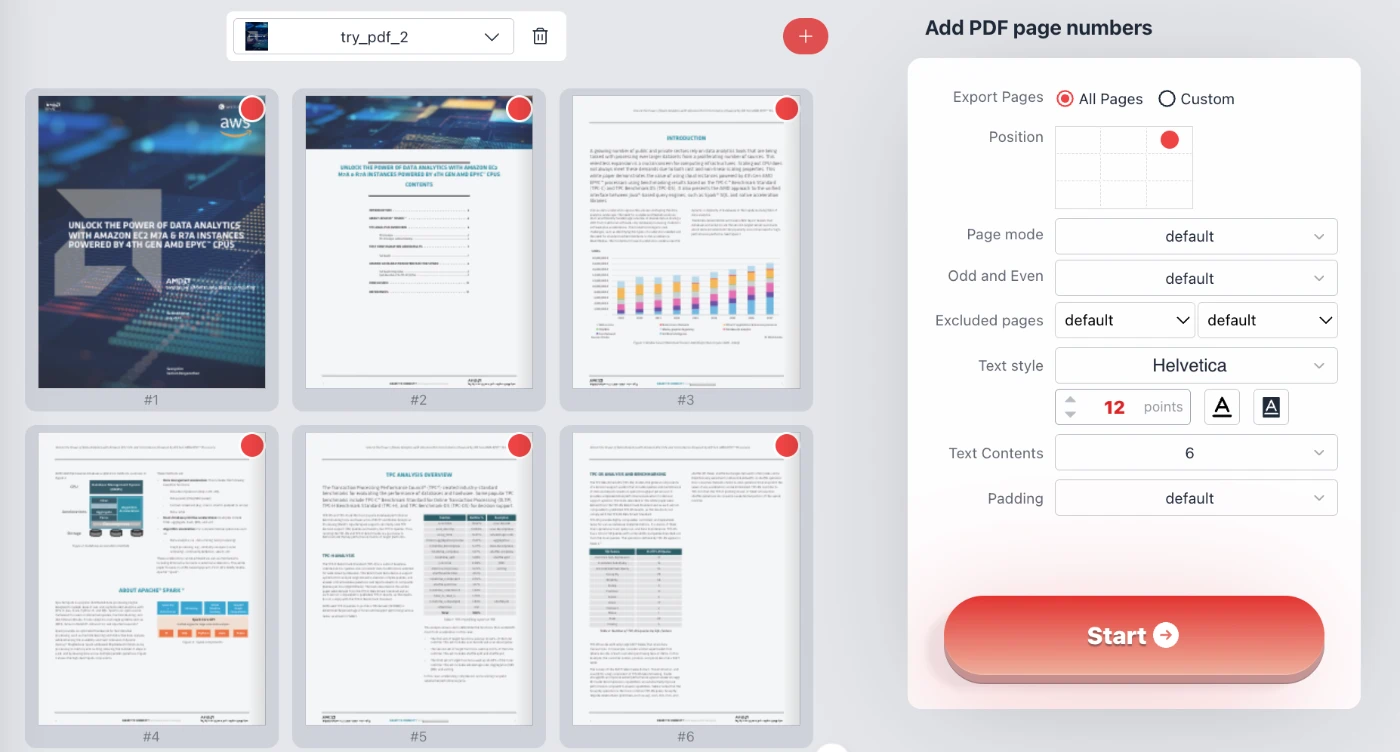
Don't settle for fixed locations. Our tool features an intuitive 3x3 grid interface (Position selector) that allows you to place page numbers in any of the nine standard zones of a page: top-left, top-center, top-right, middle-left, center, middle-right, bottom-left, bottom-center, or bottom-right.
Furthermore, for pixel-perfect accuracy, you can utilize the Custom Padding feature. Adjust the X and Y offsets (in points) to ensure the text doesn't overlap with existing headers or footers in your document.
2. Advanced Page Modes & Facing Pages
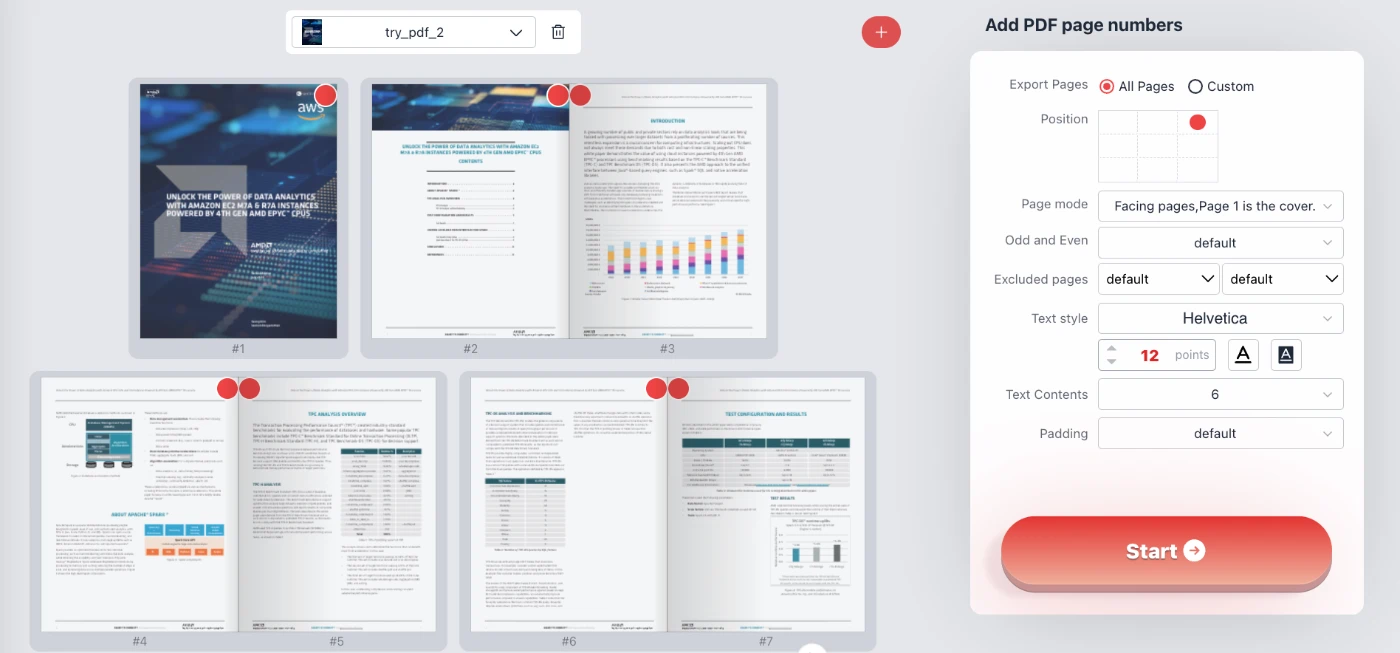
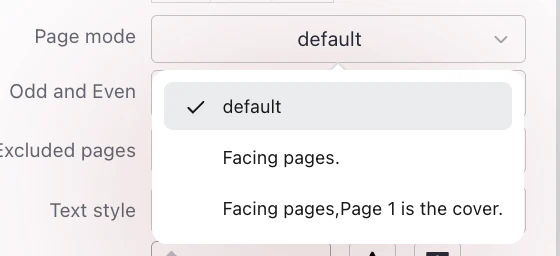
Creating a booklet or a double-sided print job? Our Page Mode settings include options for "Facing pages." This feature mirrors the position of the page numbers. For example, if you select "Bottom Right," the tool will place the number on the bottom right for odd pages and the bottom left for even pages, ensuring numbers always appear on the outer corner of a printed book.
We also support a specialized mode: "Facing pages, Page 1 is the cover." This adjusts the numbering sequence to treat the first page independently, perfect for magazines and reports.
3. Smart Exclusions & Range Control
Professional documents often have cover pages, tables of contents, or appendices that shouldn't be numbered. Our tool offers robust exclusion capabilities:
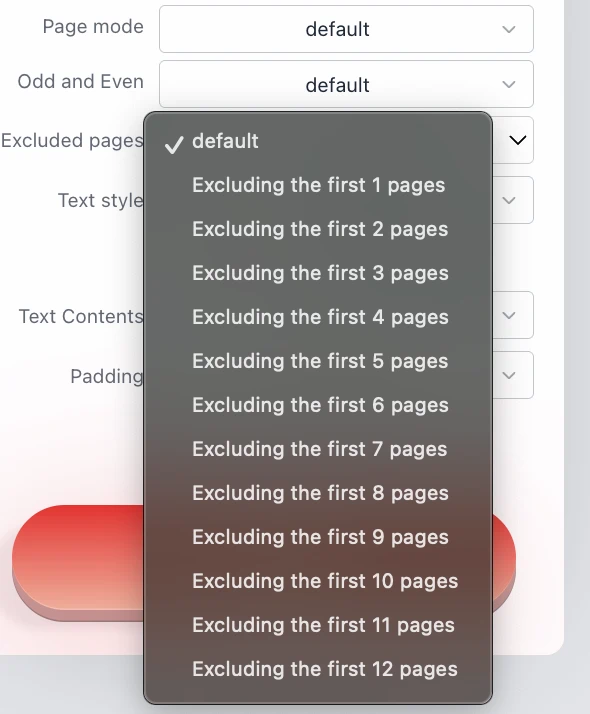
- Excluded Pages: Easily skip the first 1 to 12 pages from numbering. This is crucial for keeping your cover page clean.
- Reverse Exclusion: You can also choose to exclude the last X pages, ideal for back covers or citation pages.
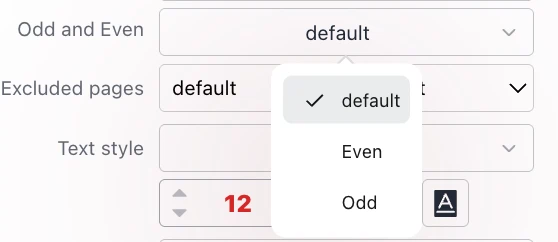
- Odd/Even Selection: Choose to apply numbers only to "Odd" or "Even" pages if your specific workflow demands it.
4. Typography & Styling
Match your document's branding with extensive text styling options. You aren't stuck with a default look.
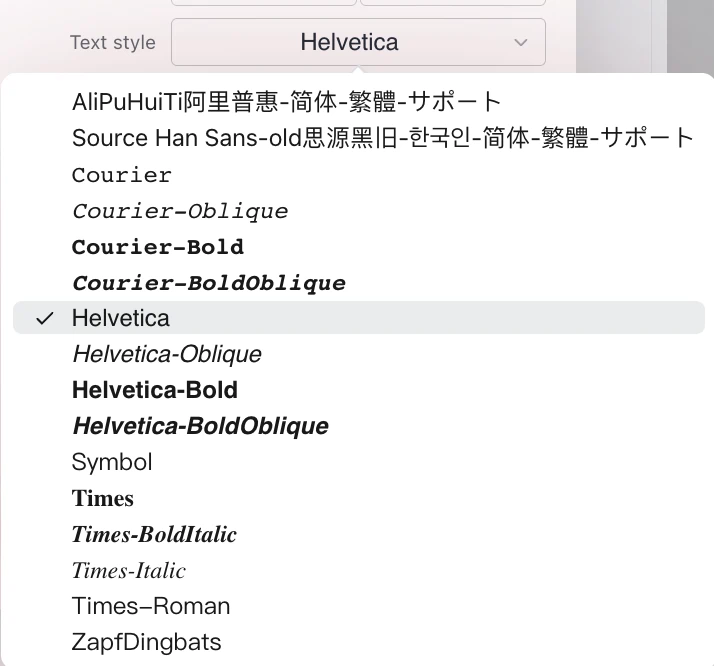
- Font Family: Choose from standard PDF fonts including Helvetica, Courier, Times New Roman, and Symbol.
New: Asian Character Support. By selecting the "AliPuHuiTi阿里普惠-简体-繁体-サポート" font option, you can correctly display characters for:
- Simplified Chinese (简体中文)
- Traditional Chinese (繁體中文)
- Japanese (日本語)
- Korean (한국어)
- Font Size & Color: Set the point size (e.g., 12pt) and use a full-spectrum color picker to set the text color.
- Background Styling: Improve legibility on busy pages by adding a background color to the page number text box.

5. Dynamic Text Content & Variables
Go beyond simple numbers. The Text Contents dropdown allows you to format the output. Choose from presets like "Page 6", "- 6 -", or "Page 6 of 20".
For power users, the Custom option supports variables:
%prepresents the current page number.%Prepresents the total number of pages.
This allows you to create custom strings like "Doc Name | Pg %p / %P" instantly.

How to Add Page Numbers to PDF
Follow these simple steps to paginate your document efficiently:
- Select Your File: Click the selection area to choose your PDF. Remember, the file stays on your browser.
- Configure Settings:
- Use the grid to select the Position (e.g., Bottom Right).
- Choose your Text Style (Font, Size, Color).
- Set the Text Content format (e.g., number only, or "Page X").
- Refine (Optional): Set margins using Padding or exclude the cover page using Excluded pages settings. Toggle "Facing Pages" if printing a booklet.
- Preview & Download: Watch the real-time preview (red indicators show the position). Click Start to process and download your updated PDF instantly.
Frequently Asked Questions (QA)
- Is this PDF page numbering tool free?
- Yes, this tool is completely free to use. There are no hidden fees, subscriptions, or watermarks added to your documents.
- Is my document secure?
- Absolutely. We utilize advanced browser-based technology (WebAssembly/JavaScript) to process your PDF locally. Your file is never uploaded to our servers, ensuring 100% privacy and security for your sensitive data.
- Can I start numbering from a specific page?
- Yes. You can use the "Excluded pages" feature to ignore the first few pages (like the cover or table of contents). The numbering will visibly appear on the subsequent pages based on your configuration.
- Can I number specific pages differently (e.g., facing pages)?
- Yes. Select "Facing pages" in the "Page mode" dropdown. This will automatically position numbers on the outer corners of the pages (left for even, right for odd), mirroring the layout used in professional books and magazines.
- Can I add "Page X of Y" formatting?
- Yes. In the "Text Contents" menu, you can select the "Page %p of %P" preset, or write a custom string using
%pfor the current page and%Pfor the total page count.