

Welcome to the ultimate solution for document security and optimization. Our Convert PDF to Scanned PDF tool is designed to transform editable, searchable PDF documents into flattened, image-based files. Whether you need to simulate a physical scan for administrative purposes, protect your intellectual property by preventing text selection, or drastically reduce file size for email attachments, our tool offers a comprehensive suite of processing modes tailored to your specific needs.
By using advanced rasterization technology, we convert vector-based text and images into high-optimized bitmap layers (JPG or PNG). This process, known as "flattening," merges all document layers into a single background image, effectively "baking" the content. The result is a file that looks exactly like your original but is secure from modification and optimized for storage.
Why Convert to Scanned PDF? Key Benefits
- Security & Anti-Copying: Turn selectable text into pixels. This prevents users from easily copying, pasting, or editing your content using standard PDF viewers. It is an essential step for protecting sensitive contracts, invoices, and creative work.
- Simulate Physical Scans: Need to submit a document that looks like it was scanned by a printer? Our tool adds the necessary rasterization characteristics to make digital-born PDFs look like authentic scanned copies.
- Extreme Compression (Up to 90%): Scanned PDFs don't have to be huge. Our intelligent algorithms (supporting both JPEG and PNG optimization) can reduce file size significantly without compromising legibility, making sharing via email or upload portals seamless.
- Universal Compatibility: Flattened PDFs remove complex layers, transparency issues, and font dependencies. This ensures your document looks exactly the same on every device, from mobile phones to desktop printers.
Choose Your Processing Mode
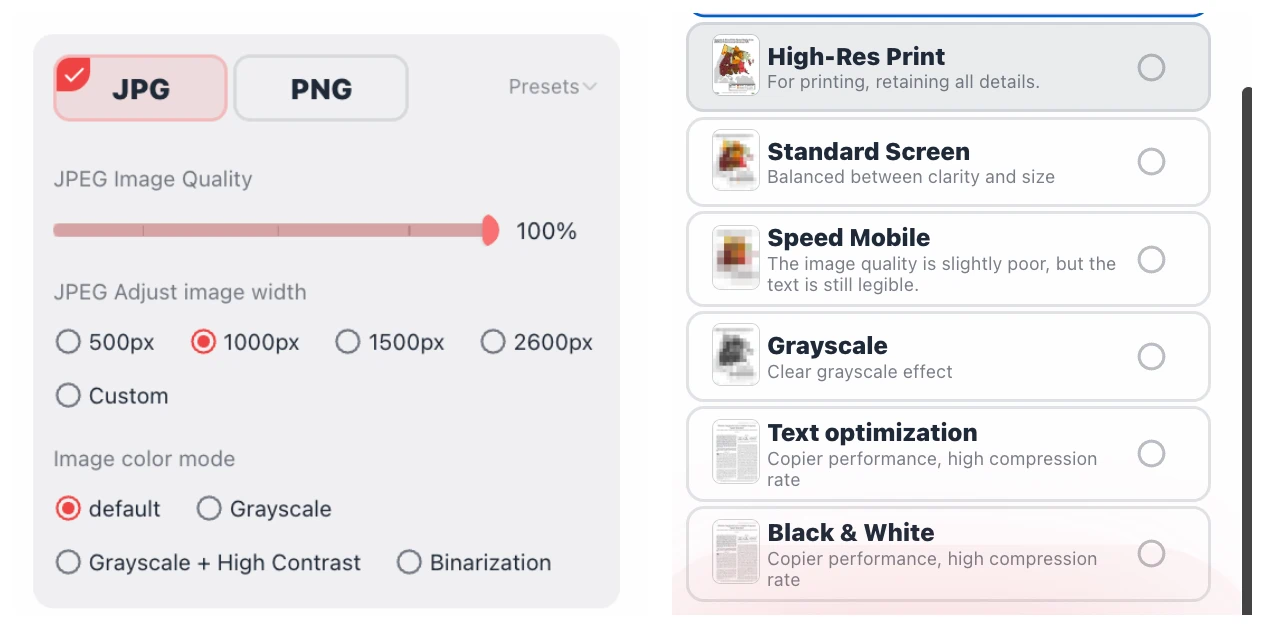
We understand that one size does not fit all. Based on your specific requirements—whether it's archival print quality or maximum web speed—we offer six distinct preset modes, plus a fully custom option.
1. High-Res Print (Best for Archiving)
Technical Specs: Color | JPEG Quality 99% | Width ~2600px
Select this mode when quality is paramount. It retains all the fine details, color depth, and sharpness of the original document. With a high output resolution (approximating 300 DPI for standard A4), this mode is ideal for documents that will be physically printed or archived for legal purposes. The compression is minimal to ensure artifacts are invisible to the naked eye.
2. Standard Screen (Balanced Choice)
Technical Specs: Color | JPEG Quality 75% | Width ~1500px
This is our recommended default setting. It strikes the perfect balance between visual clarity and file size. At 75% quality and standard screen resolution, text remains crisp and images are vibrant, but the file size is significantly reduced compared to the High-Res mode. Perfect for viewing on monitors, laptops, and tablets.
3. Speed Mobile (Maximum Compression)
Technical Specs: Color | JPEG Quality 50% | Width ~1000px
Need to send a file over a slow data connection or strictly limited by an upload cap (e.g., under 2MB)? The Speed Mobile mode aggressively compresses the document. While image quality is slightly reduced (softer edges), the text remains fully legible. This is the fastest way to flatten a PDF for quick mobile viewing.
4. Grayscale (Professional & Clean)
Technical Specs: Grayscale Filter | JPEG Quality 75% | Width ~1500px
Convert colorful documents into professional grayscale. This isn't just a simple desaturation; we apply a specific gray filter that maintains contrast. Removing color information channels allows for substantial file size savings while giving documents a formal, photocopied appearance.
5. Text Optimization (Copier Effect)
Technical Specs: High Contrast Gray | PNG Format | 4-Color Palette
This mode mimics the output of a high-quality office photocopier. It utilizes a "Gray High Contrast" filter and switches the output format to PNG with a limited color palette (4 colors). This creates sharp text edges and eliminates the "noise" often found in JPEG compression. It is excellent for text-heavy documents where readability is more important than photographic accuracy.
6. Black & White (Fax Style / Max Efficiency)
Technical Specs: Binary Black & White | PNG Format | 2-Color Palette
For the ultimate in file size reduction and clarity, choose Black & White. This mode applies a threshold filter, converting every pixel to either pure black or pure white (no gray shades). This "Fax style" processing results in extremely small file sizes and high-contrast text, making it perfect for invoices, receipts, and simple forms.
Advanced Customization
For power users, our Custom Mode unlocks the full potential of our rendering engine. You are not limited to presets. You have full control over:
- Filter Type: Choose between Color, Gray, High-Contrast Gray, or Black & White.
- Thresholds: Adjust the black/white threshold (0-255) to darken faint text or clear up background noise.
- Format & Quality: Switch between JPEG (for photos) and PNG (for text) and set your specific quality percentage (0-100).
- Resolution (DPI): Define the output width manually (e.g., 2600px for print, 1000px for web) to control the pixel density of your scanned PDF.
How It Works: The Technology Behind the Tool
When you upload a PDF to our converter, the browser-based processing engine takes over. Unlike simple converters that just change the file extension, our tool performs a complete Rasterization Process:
- Rendering: Each page of your PDF is rendered into a high-resolution image in memory.
- Filtering: Based on your selected mode (e.g., Grayscale or High Contrast), image filters are applied to adjust colors and contrast.
- Re-encoding: The image is compressed using advanced JPEG or PNG algorithms. For example, in "Black & White" mode, we reduce the color depth to 1-bit, ensuring the smallest possible footprint.
- Repackaging: These optimized images are placed back into a new PDF container. The text layer is discarded, leaving only the visual representation.
Frequently Asked Questions (FAQ)
Does this tool make my PDF non-searchable?
Yes. By converting your PDF to a scanned (image-based) format, the underlying text layer is removed. This means the content can no longer be searched (Ctrl+F) or selected. This is a desired feature for users wanting to prevent easy text extraction or modification.
What is the difference between JPG and PNG output in the presets?
We use JPEG for modes that require color depth and smooth gradients (like the High-Res and Standard modes), as it handles photos well. We use PNG for "Text Optimization" and "Black & White" modes because PNG offers lossless compression for text, ensuring crisp characters without the "fuzzy" artifacts often seen in compressed JPEGs.
How much can I reduce my file size?
The reduction depends on the content of your original PDF and the mode selected. Converting a complex, multi-layer vector PDF to "Speed Mobile" or "Black & White" mode can often result in file size reductions of up to 90%. Even the "Standard Screen" mode usually offers significant savings by optimizing image assets.
Is my document data secure?
Absolutely. All processing happens within your secure browser session or via a secure encrypted connection. We do not store your files permanently. Once the conversion is complete and you download your flattened PDF, the data is flushed from our cache.
Start Flattening Your PDFs Today
Don't let large file sizes or security concerns slow you down. Use our Convert PDF to Scanned PDF tool to create optimized, flattened, and professional-looking documents in seconds. Select a preset above to get started instantly, or toggle "Custom" to fine-tune your results.