

Change PDF Background Color or Add Background Image
Customize your PDF pages by setting solid or linear gradient color backgrounds, or adding custom image watermarks. Instantly fine-tune opacity, adjust layout, apply image filters, and exclude specific pages.
Try these now PDFs:
Does this online conversion service protect my privacy? Are the files I import safe?
Very safe, because your files never leave your device and are not uploaded. ImagesTool uses browser technology to achieve the conversion service that previously required uploading.
Everything happens only in your browser, 100% protecting your privacy.
You can do a test Convert once, then disconnect the device from the network, and convert again and you will find that everything is normal.
Add & Edit Content
Change PDF Background Color or Add Image Backgrounds Instantly
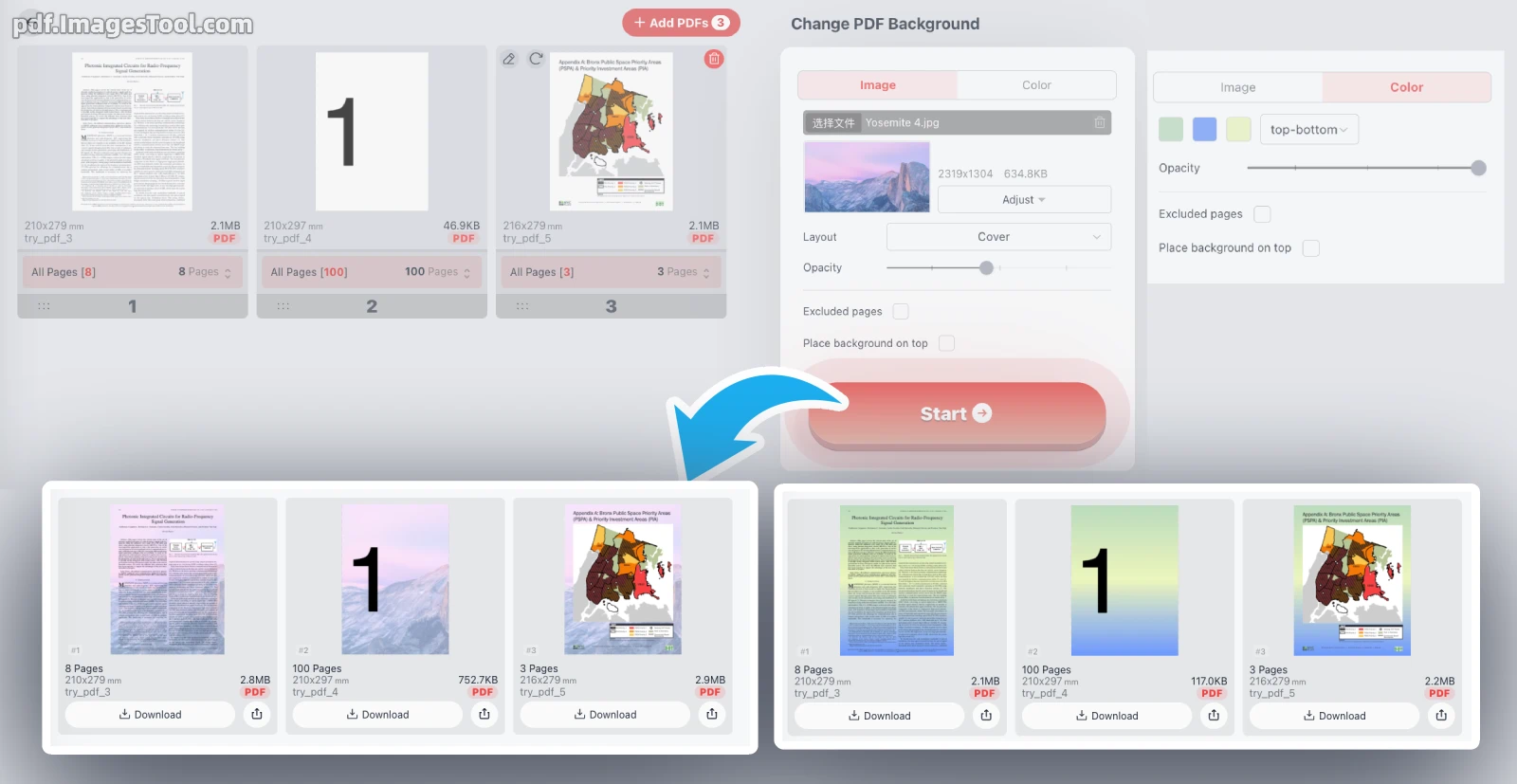
I highly recommend this tool to quickly change PDF background color or add custom image backgrounds. It offers robust customization: easily switch between solid hues and top-bottom/left-right gradients.
If you prefer images, upload a JPG or PNG, set the layout to 'Cover', and fine-tune it via the 'Adjust' panel. You get precise control over opacity, blur, brightness, contrast, and saturation, plus one-click filters like grayscale, sepia, and invert. You can even place the background on top or easily exclude specific pages.
Your privacy is fully protected. This tool runs entirely locally within your browser. There are no server uploads, no cloud storage, no logins, and no registration required.
Here is how easily you can customize your documents:
- Select and load your PDF file directly into your browser.
- Navigate to the 'Image' or 'Color' tab to apply your new background.
- Use the adjust panel to tweak image filters, gradients, opacity, or exclude pages.
- Click export to download your newly customized file instantly.
While this isn't a traditional format converter, it flawlessly processes your PDF without altering the original text, formatting, or vector quality, ensuring a high-resolution export every time.
- Visual Optimization: Easily change glaring white PDF backgrounds to soft solid colors or gradients to minimize eye strain for long reading sessions.
- Brand Customization: Add your company's logo or a customized image background with tailored opacity to create professional, branded presentations.
- Advanced Watermarking: Utilize the 'background on top' feature combined with image filters and opacity sliders to securely watermark your confidential drafts.
Frequently Asked Questions (QA)
Q: Is it safe to process confidential documents with this tool?
A: Absolutely. The entire process of changing your PDF background happens locally on your device. We never upload your files to any server.
Q: Can I edit the appearance of my uploaded background image?
A: Yes! The built-in adjustment panel lets you easily modify image width, blur, brightness, contrast, and saturation. You can also apply grayscale, invert, or sepia effects.
Q: How do I prevent the background from applying to every single page?
A: Simply check the 'Excluded pages' option in the main layout panel to specify exactly which pages should remain untouched by the new background.
Q: Will adding a background color or gradient background significantly increase my PDF file size??
A: No, because the generated solid color and gradient backgrounds are the PDF's native vector backgrounds, increasing the size by only about 50KB-100KB.